
Add a knowledge base
Teach your agent about your business so it can answer questions correctly — step by step, with pictures.
Your agent is only as smart as what it knows about your business. The knowledge base is where you give it that information — your opening hours, prices, services, policies, FAQs… anything you'd tell a brand-new team member on their first day.
Once you add something here, your agents read it and use it on calls. This guide walks through it one step at a time. If you can send an email, you can do this.
What should I add?
Think about the questions customers ask the most: "What time do you open?", "How much does it cost?", "Do you do X?". Add the answers here and your agent will handle them on its own.
Step 1: Open the Knowledge base
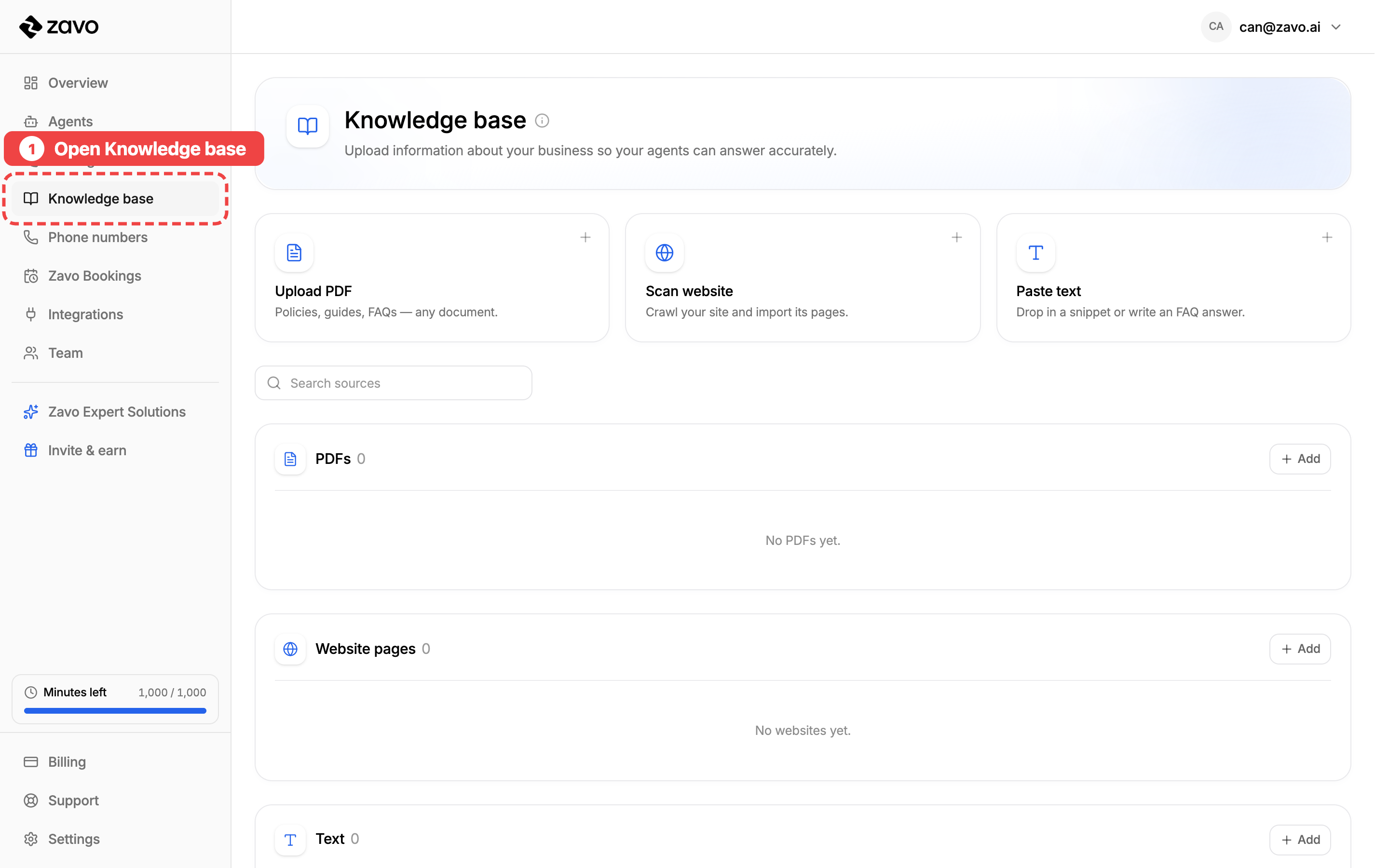
In the menu on the left, click Knowledge base. This is your agent's memory — everything it knows lives here.
Step 2: Pick how to add your info
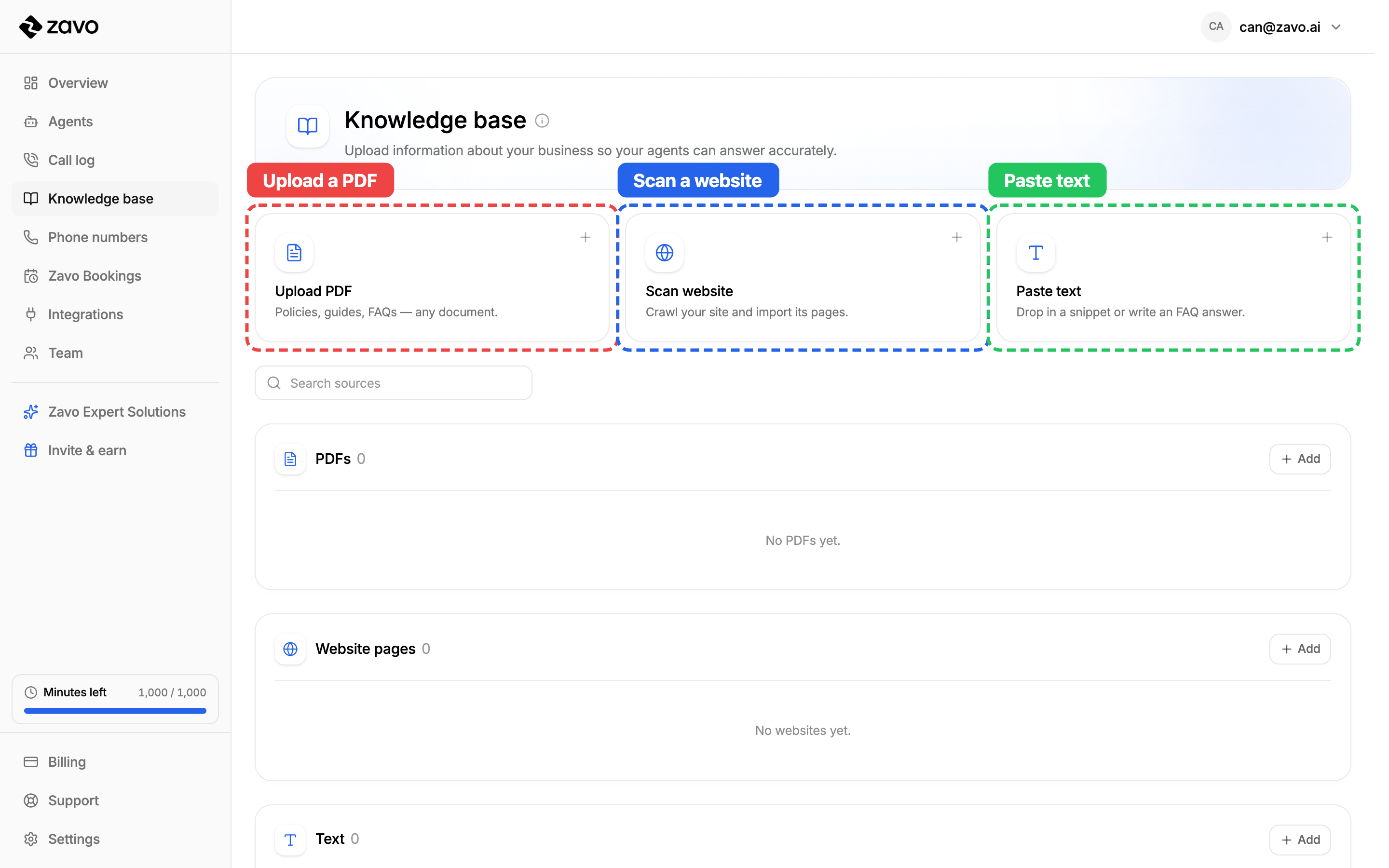
There are three ways to add information. Pick whichever is easiest for what you already have:
- Upload a PDF — a document you already have, like a menu or price list.
- Scan a website — let Zavo read your existing website for you.
- Paste text — just type or paste the information in yourself.
You can use all three, as many times as you like. Here's how each one works.
Upload a PDF
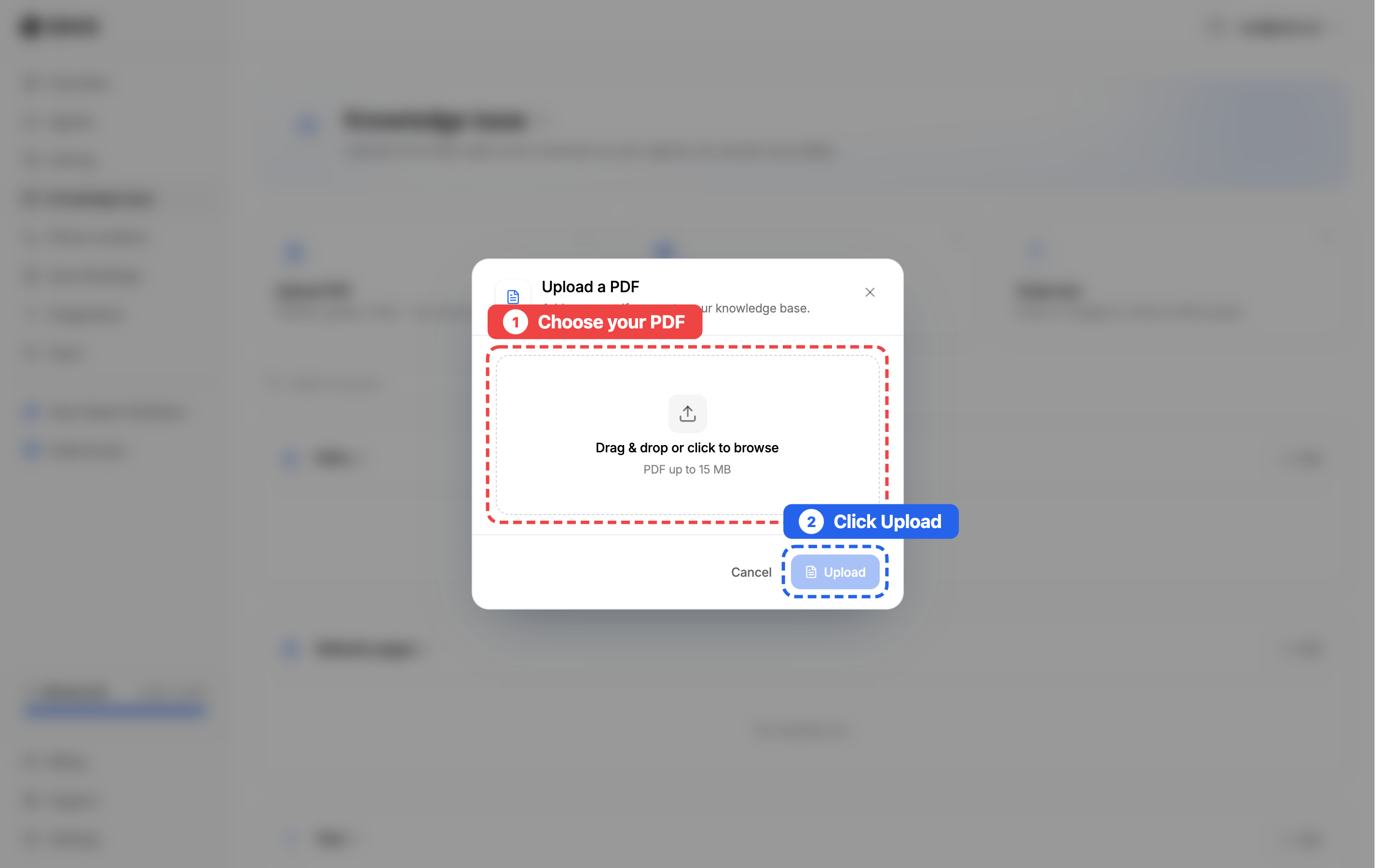
Best for documents you already have — menus, brochures, price lists, policies.
- Click the Choose your PDF box and pick a file from your computer.
- Click Upload.
Scan a website
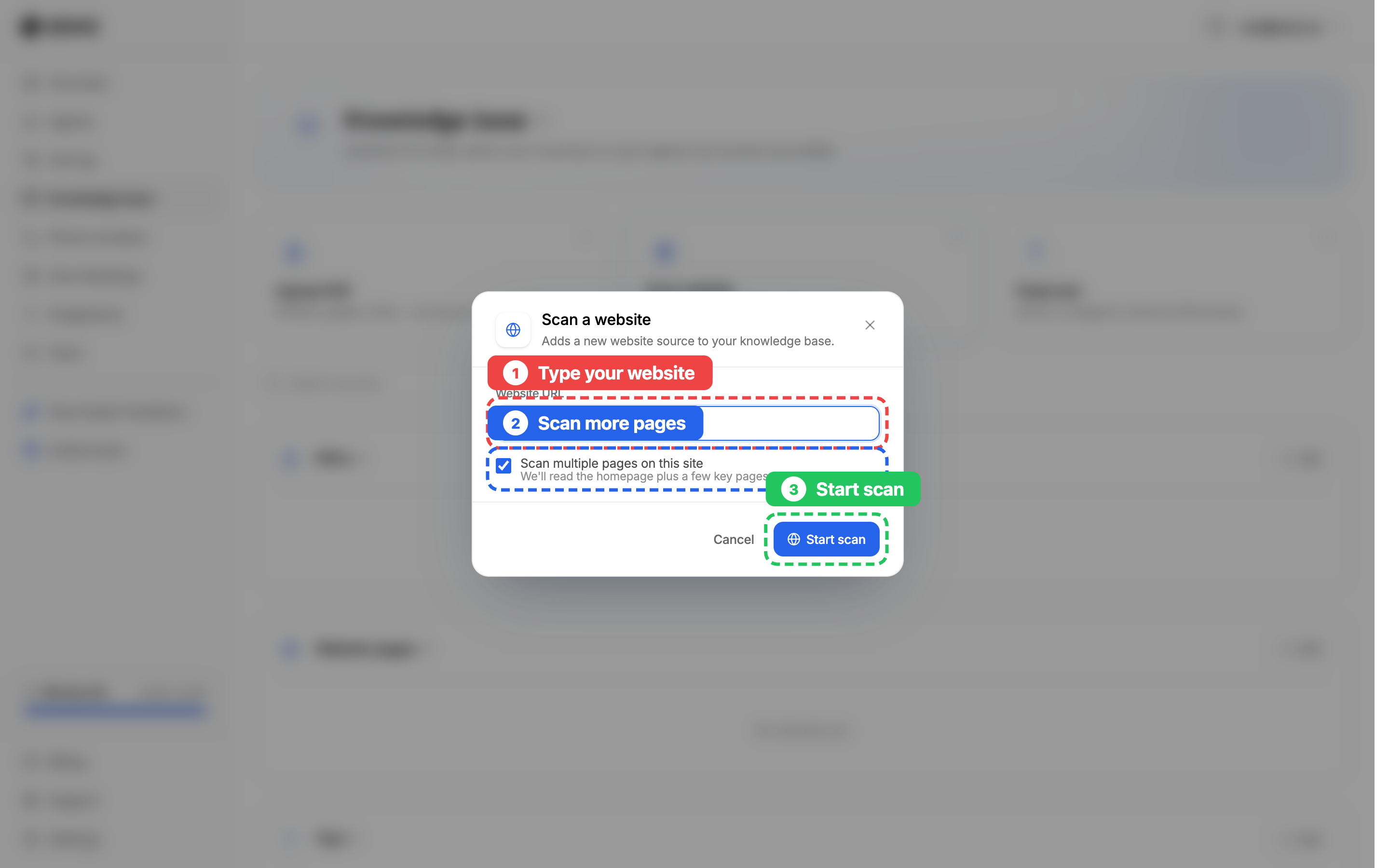
Best if the information is already on your website — Zavo will read it for you.
- Type your website address, like
yourbusiness.co.uk. - Leave Scan multiple pages ticked so Zavo reads a few key pages, not just the homepage.
- Click Start scan.
Paste text
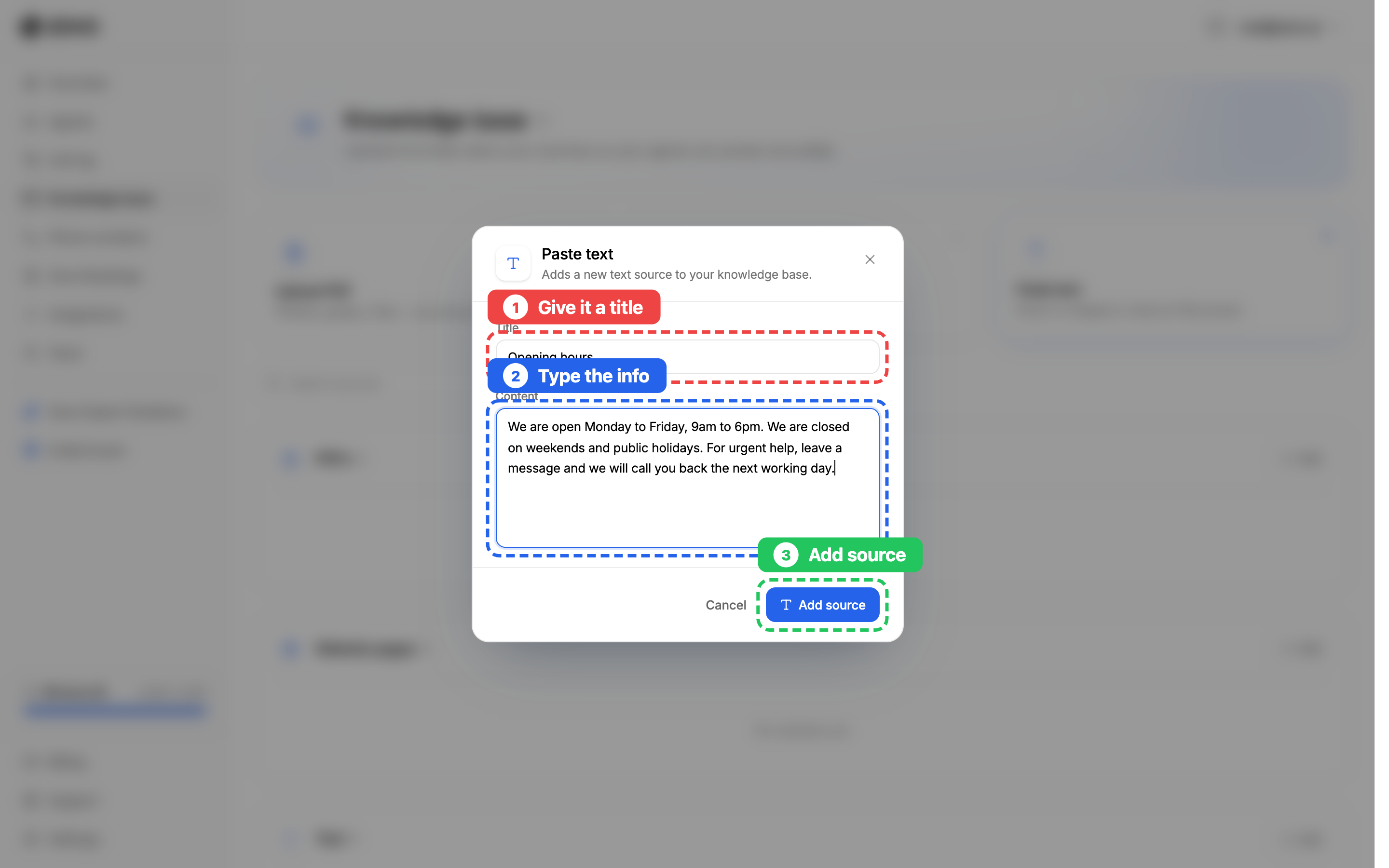
Best for quick facts and FAQ answers — opening hours, parking info, a short policy.
- Give it a short title so you can find it later, like Opening hours.
- Type or paste the information into the box.
- Click Add source.
Step 3: Wait for "Ready"
After you add something, it shows up in the list below. It says Processing for a moment while Zavo reads it, then turns Ready (green). Once it says Ready, your agents can use that information on calls.
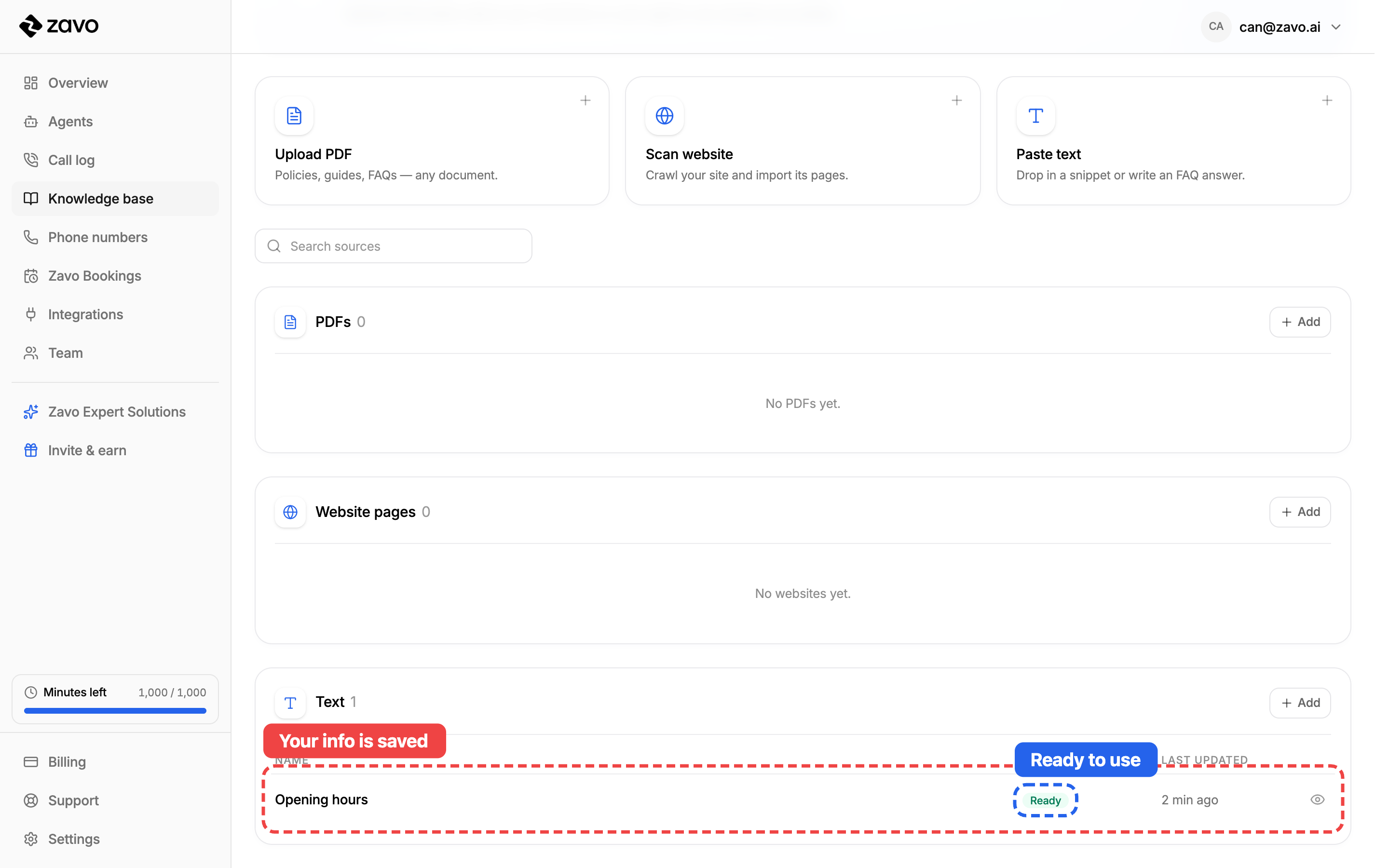
That's it — you've taught your agent something new. 🎉
Keep it fresh
Whenever something changes — new prices, new hours, a new service — come back and add or update it here. Your agents always use the latest information.
Tips for great answers
- Add the common questions first. Hours, location, prices, and "do you do X?" cover most calls.
- Keep each text note short and about one topic. One note for hours, another for parking, another for refunds — it's easier for your agent to find the right answer.
- Use plain language, the way you'd explain it to a customer.