
Connect your number to your agent
Point a phone number at the agent that should answer it — a couple of clicks on the Phone numbers page. Step by step, with pictures.
You've got a number and you've built an agent — now you just need to connect them, so that when someone rings that number, your agent picks up. It takes two clicks on the Phone numbers page.
Before you start
You'll need a number that's Live (green) and at least one agent saved. New to either? See Setup your number and Create your agent first.
Step 1: Find your number
Open Phone numbers from the menu on the left. In the Your numbers table, find the number you want to connect. The Agent column on the right shows which agent answers it — a brand-new number says Unassigned.
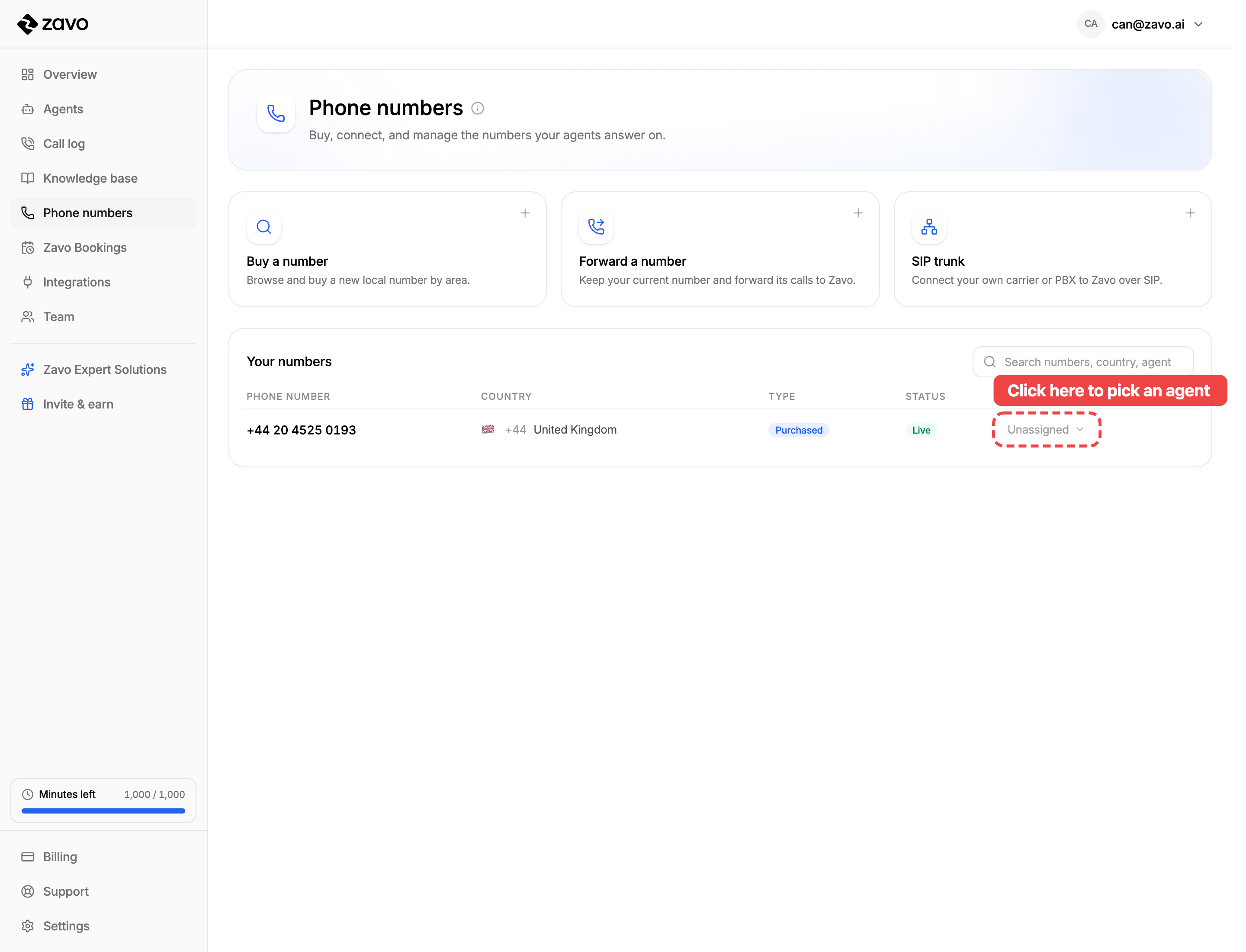
Step 2: Pick your agent
Click Unassigned in the Agent column. A little menu opens with all your agents — click the one you want to answer this number.
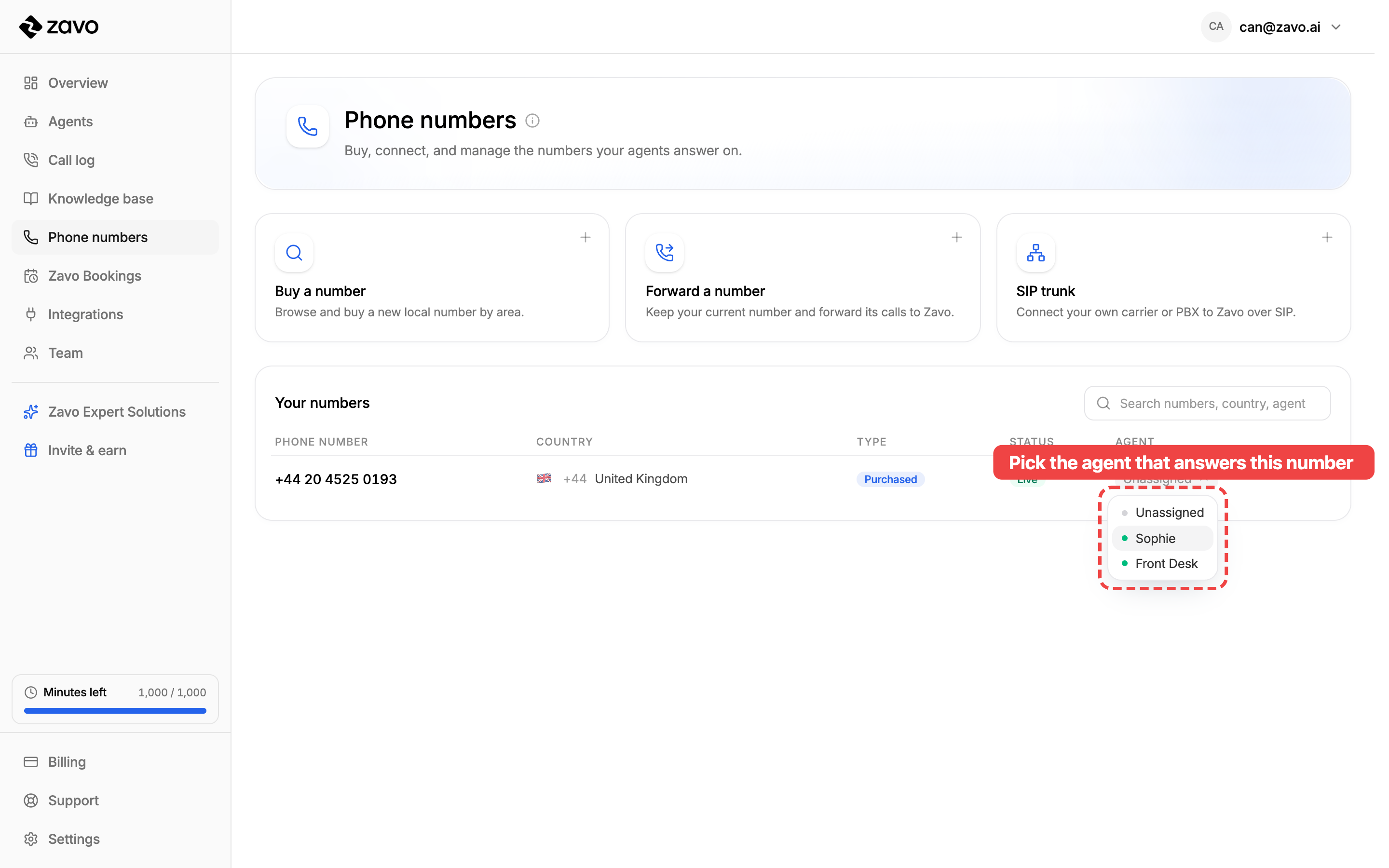
Each number answers as one agent, but one agent can answer many numbers — handy if you've got a few numbers all pointing to the same agent.
Step 3: That's it — they're connected
The Agent column now shows your agent's name with a green dot. From this moment, every call to that number is answered by your agent.
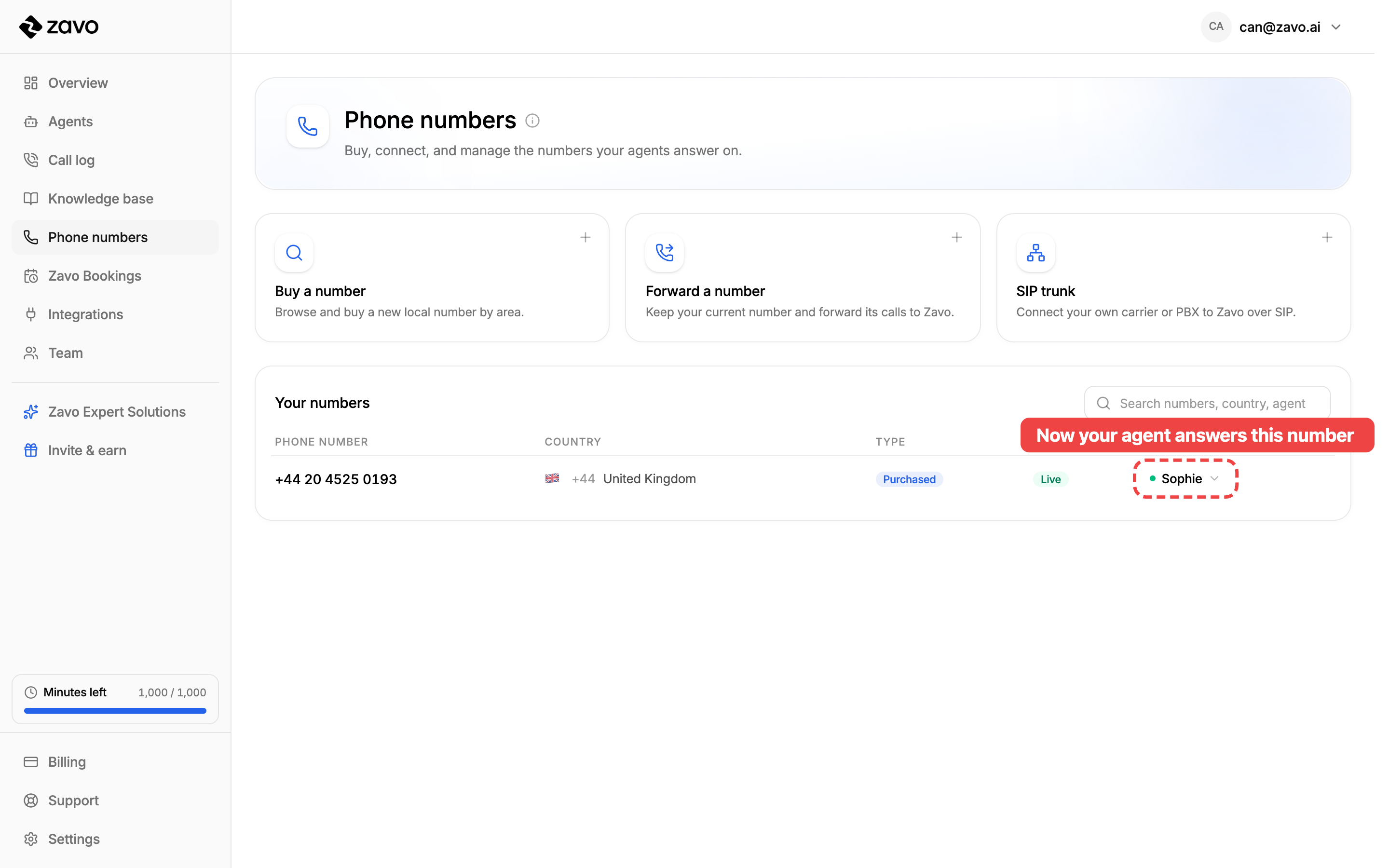
That's the whole thing — your number and your agent are linked. 🎉
Want to change it later?
Open the same Agent dropdown any time to point the number at a different agent, or choose Unassigned to disconnect it.
Doing it while you build an agent
You don't have to come here separately. When you're setting up an agent, the Add your number step does the same job — switch a number on there and it's connected to the agent you're building, no extra steps needed.
Next: test your agent
Now that calls reach your agent, give it a try. Head to Test your agent to call it and hear it in action before you go live. 🎉