
Setup your number
Get a phone number for your agent to answer on — buy a new one, forward your existing one, or connect over SIP. Step by step, with pictures.
Your agent needs a phone number to answer on. You've got three options: buy a brand-new number, forward your existing number to Zavo, or connect your own carrier over SIP. Pick the one that fits you — this guide walks through all three, step by step.
Which should I pick?
Want a fresh number for your agent? Buy a number — it's instant. Already have a number customers know? Forward it so calls ring through to Zavo. Running your own phone system? SIP trunk connects it directly.
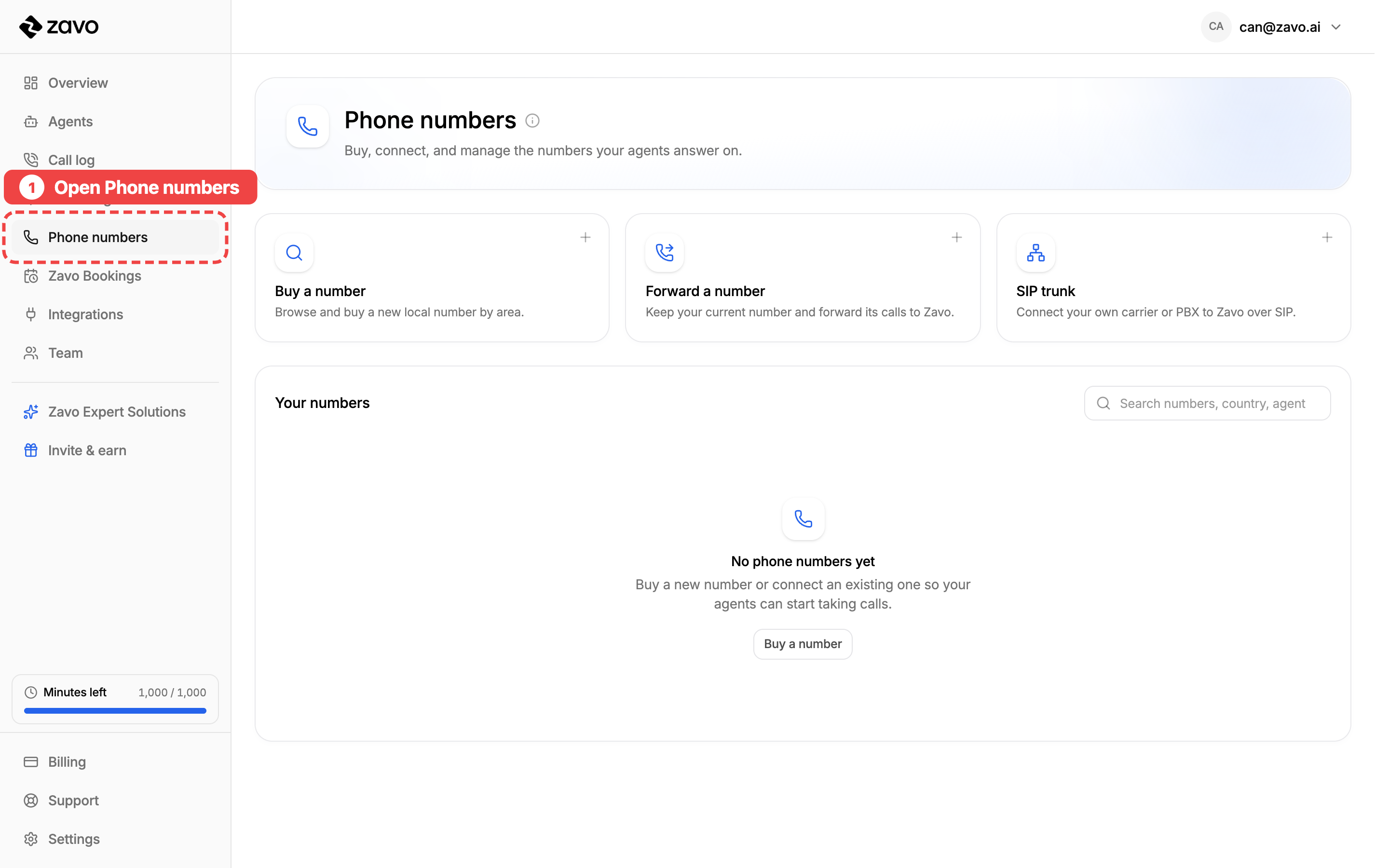
Step 1: Open the Phone numbers page
In the menu on the left, click Phone numbers. This is where you buy and manage every number your agents answer on.
Step 2: Pick how to add a number
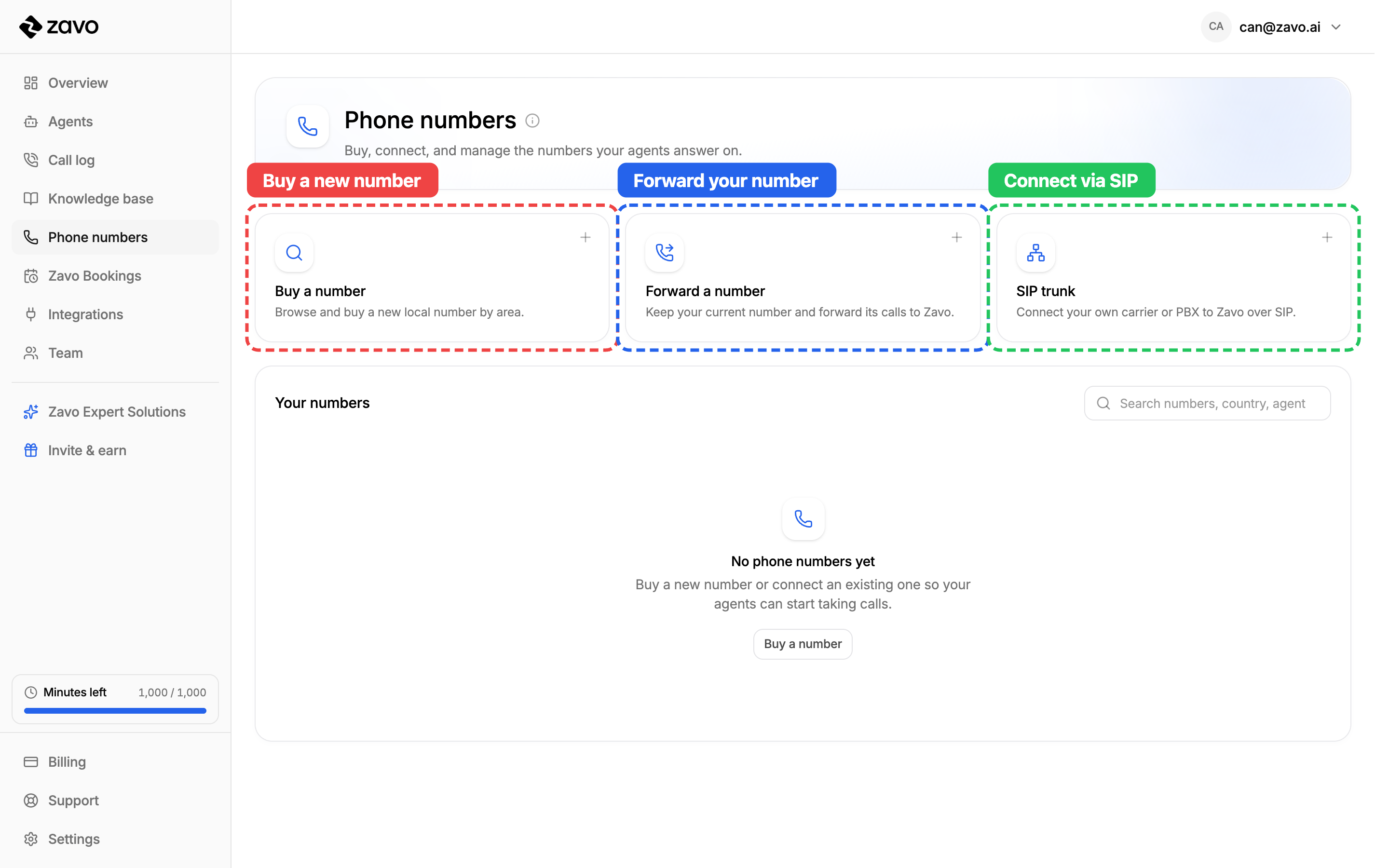
There are three ways to give your agent a number. Pick the one that fits you, then follow that section below:
- Buy a number — browse and buy a brand-new local number by area.
- Forward a number — keep your current number and forward its calls to Zavo.
- SIP trunk — connect your own carrier or phone system over SIP.
Option 1 — Buy a new number
The quickest path: pick a local area and we'll set up a brand-new number for you in about a minute. Click the Buy a number card to start.
Choose an area and search
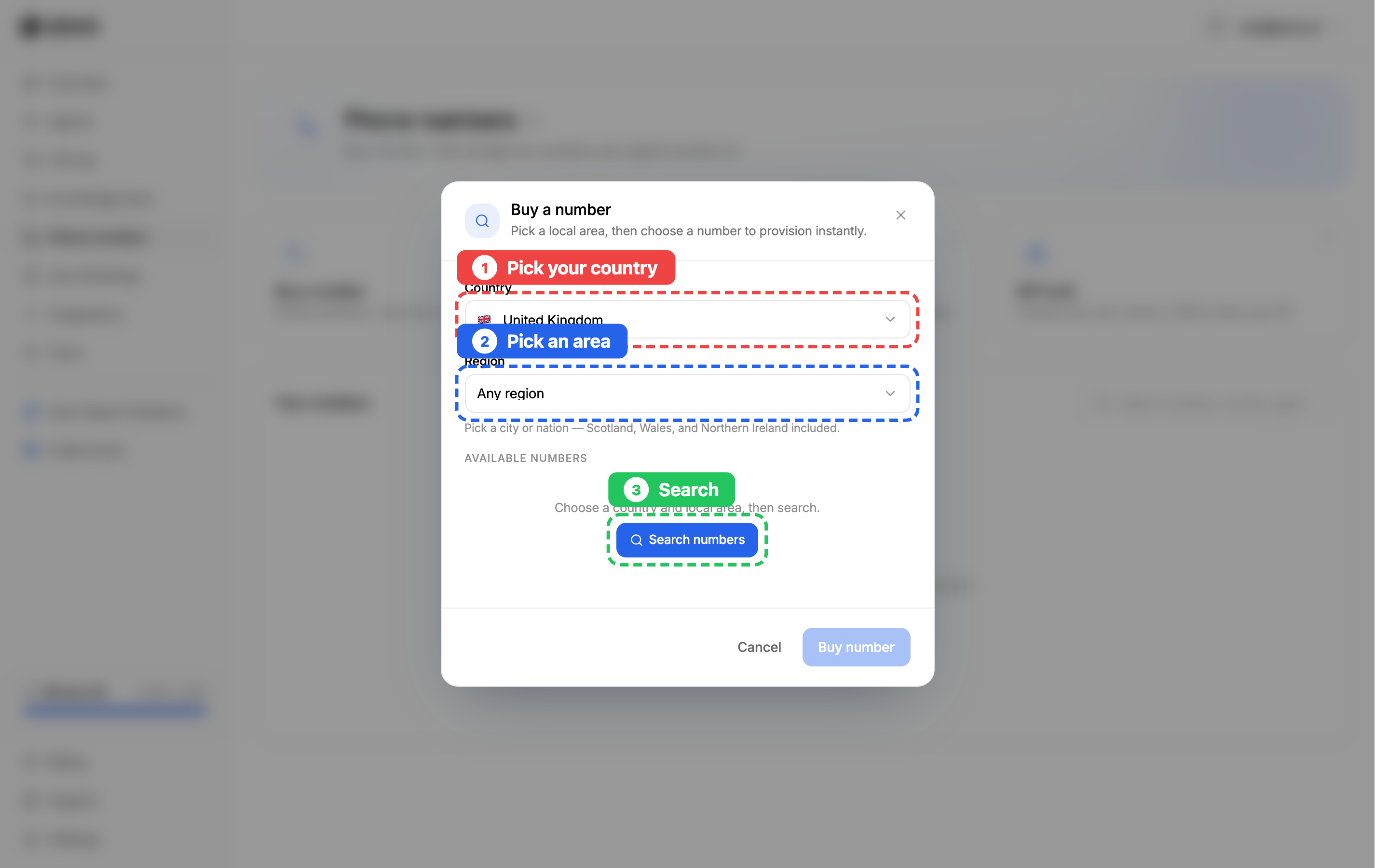
In the Buy a number window:
- Pick your country from the list.
- Pick an area — a city or region, so your number has a local feel.
- Click Search to see what's available.
Pick a number and buy it
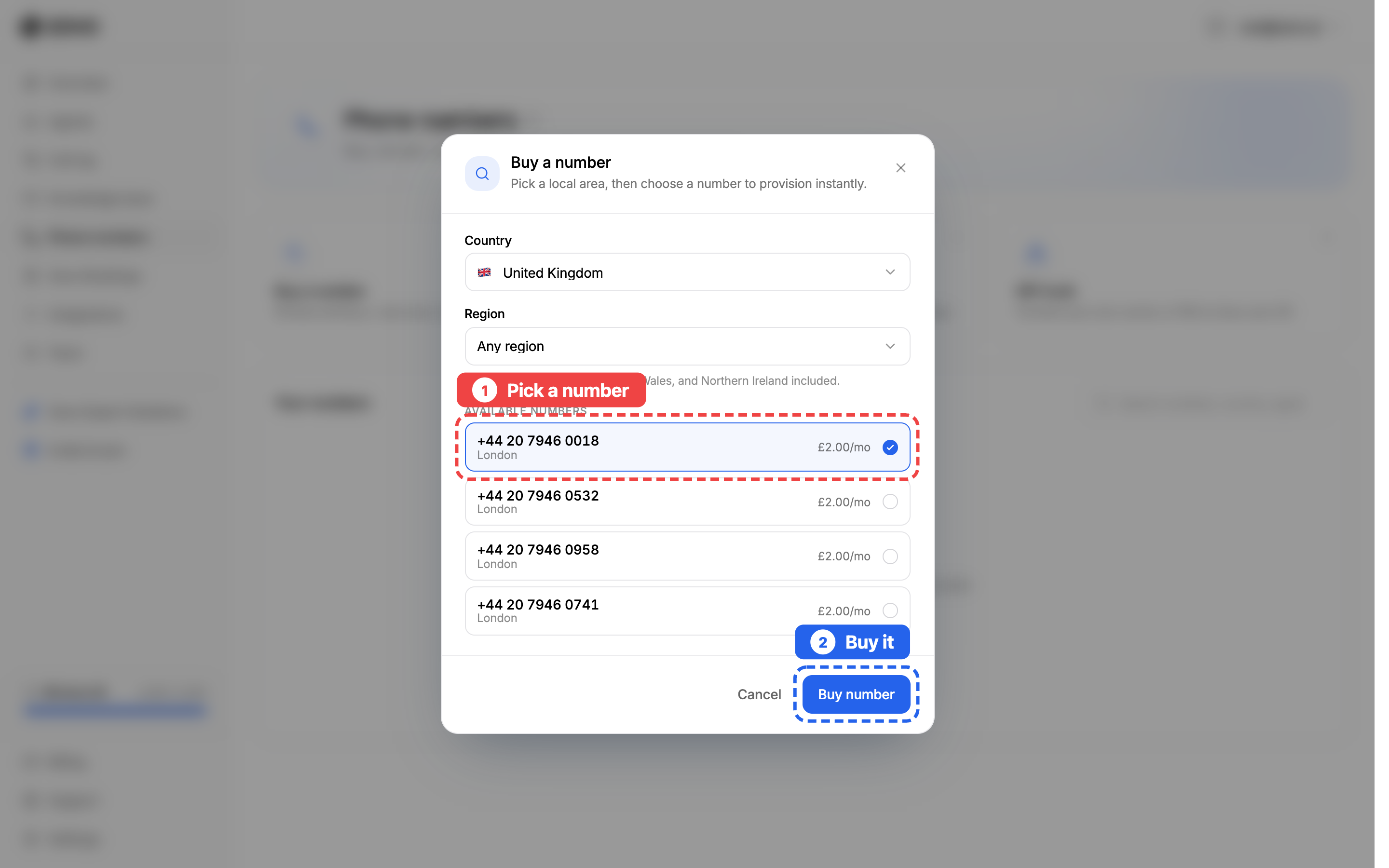
A list of available numbers appears, each with its monthly price.
- Pick a number you like — click it to select it.
- Click Buy number.
Buying a number reserves it for your business and bills it on your plan. You can release a number later if you no longer need it.
Your number is ready
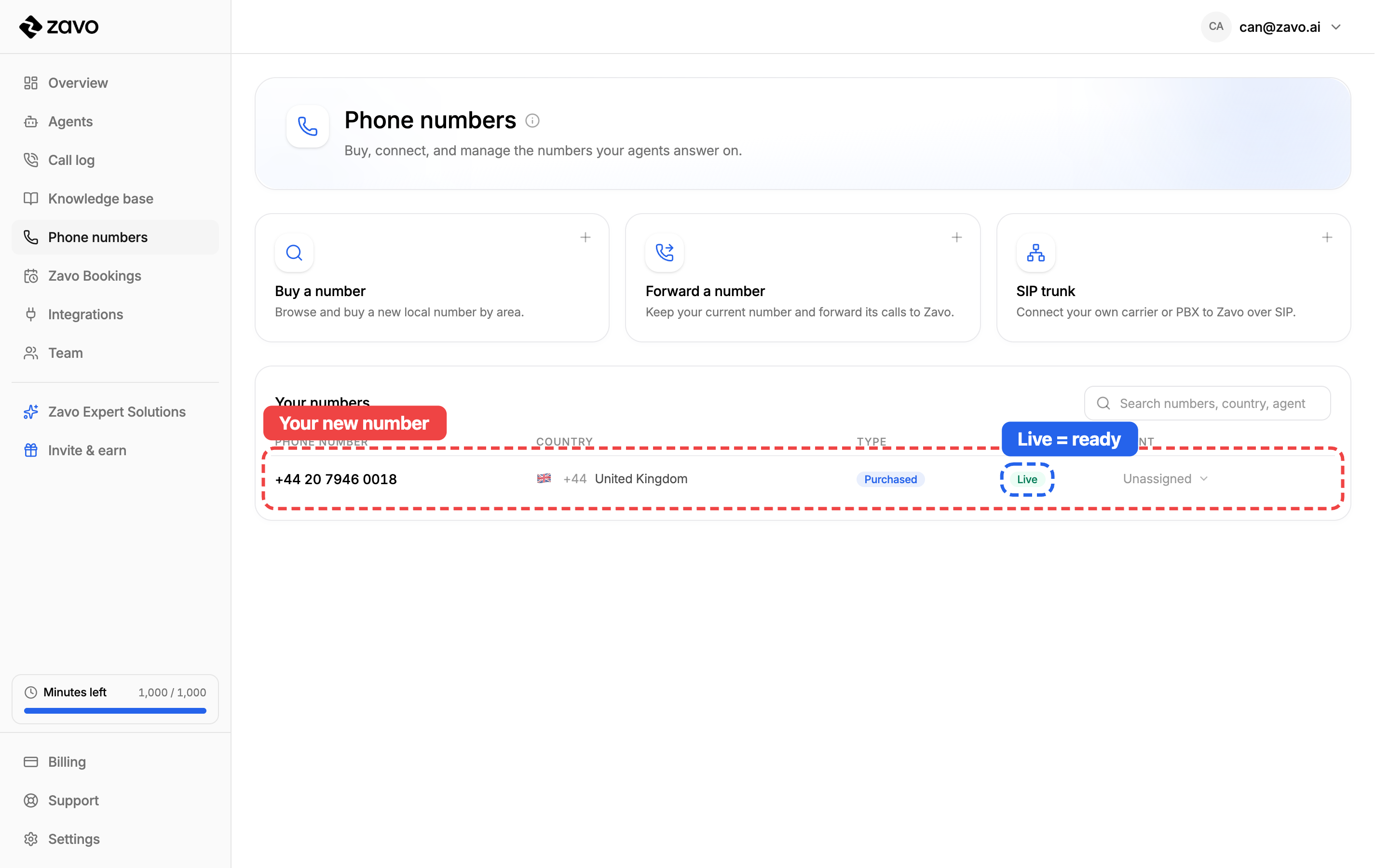
Your new number now shows up under Your numbers. When the status says Live (green), it's ready to take calls. 🎉
Option 2 — Forward your existing number
Already have a number your customers know? Keep it. Forwarding sends its calls to Zavo so your agent answers, without changing the number on your business cards. Click the Forward a number card to open the guide.
Turn on call forwarding with your provider
The important thing to know: call forwarding is switched on with your phone provider, not inside Zavo. That's EE, Vodafone, O2, Three, BT — whoever you pay your phone bill to.
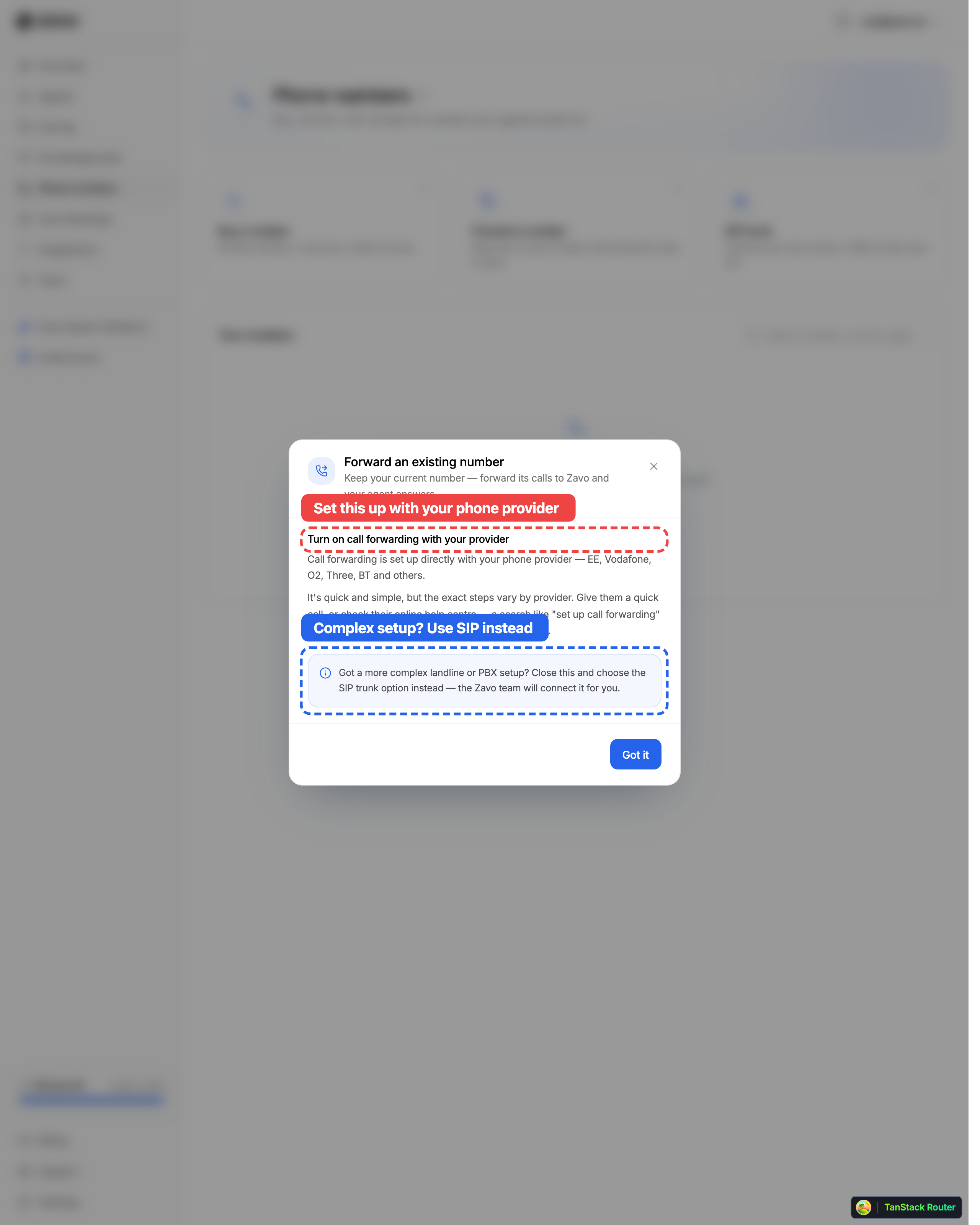
It's quick and simple, but the exact steps are slightly different for each provider:
- Open your provider's call-forwarding settings — in their app, on their website, or by giving them a quick call.
- Forward all calls to the Zavo number you want your agent to answer on.
- Save it, then make a test call — your agent should pick up.
Not sure how?
Search your provider's name plus "set up call forwarding" (for example, "Vodafone set up call forwarding") and their help centre will show you the exact steps for your phone.
Got a landline or office phone system?
Complex landline or PBX setups don't always forward cleanly. If that's you, use Option 3 — Connect a SIP trunk instead, and the Zavo team will wire it up for you.
Option 3 — Connect a SIP trunk
Running your own carrier or office phone system (PBX)? A SIP trunk routes it straight into Zavo. This one the Zavo team sets up for you — you don't have to configure anything technical yourself. Click the SIP trunk card to start.
Tell us and we'll connect it
In the Connect a SIP trunk window, click Contact support. That opens an email to our team — send it and we'll take it from there.
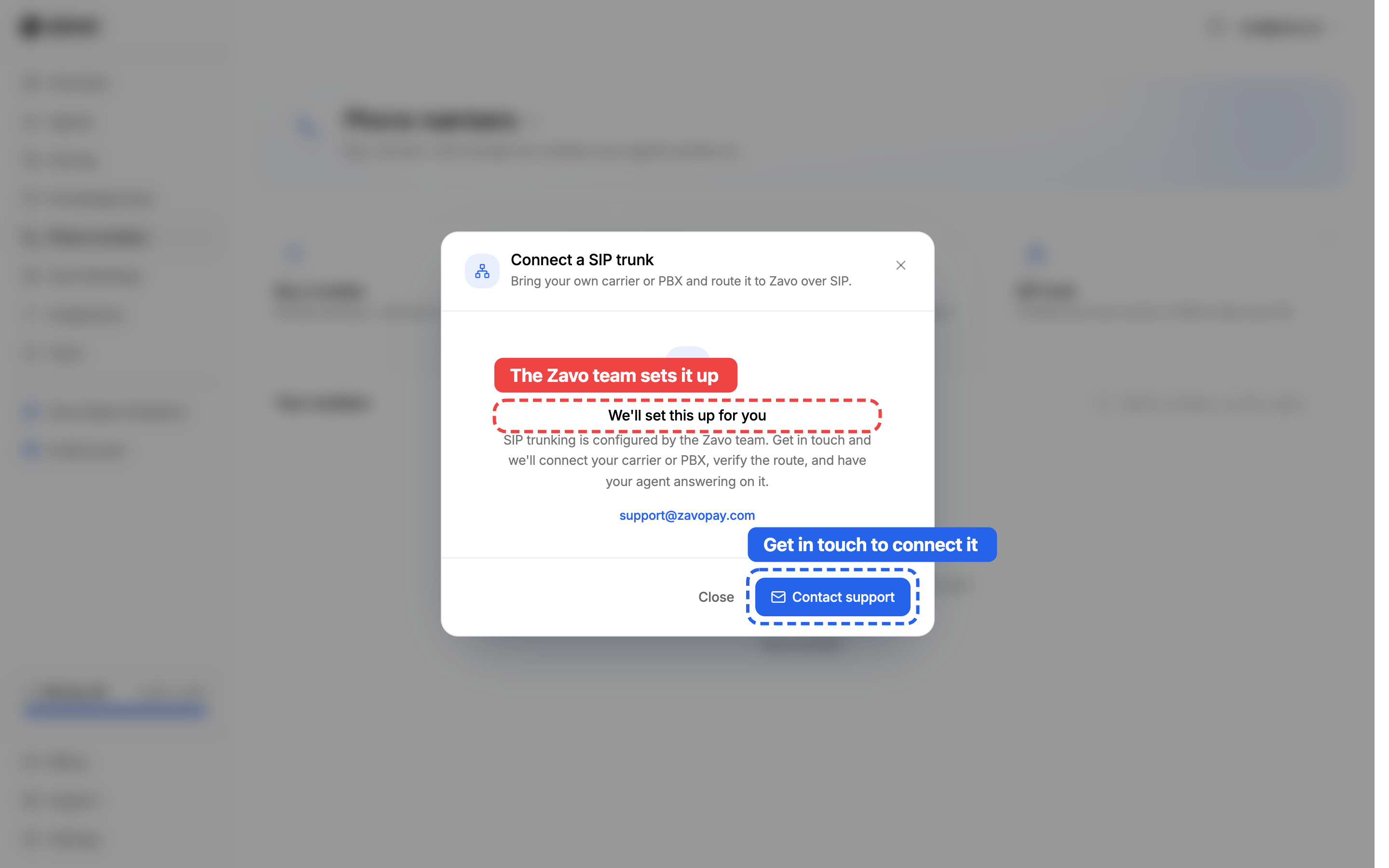
Here's what happens next:
- Get in touch — click Contact support (or email support@zavo.ai).
- Tell us about your setup — your carrier or phone system, and the number you want your agent to answer on.
- We connect it — the Zavo team configures the trunk, checks the route, and confirms your agent is answering on it.
No technical know-how needed on your end — sending the email is all we need to get started.
Next: point your number at your agent
A number on its own doesn't do anything yet — whichever option you chose, the last step is the same. Head to Connect your number to your agent to choose which agent answers it. 🎉