
Set up actions and integrations
Have your agent act after a call — email or text your team with what happened, and book appointments into your calendar. Every setting, step by step.
Answering questions is only half the job. Your agent can also act on a call — email or text your team with what happened, and book appointments straight into your calendar.
Each of these is optional and lives as a step in your agent's checklist. Set up the ones that fit how you work and skip the rest — you can always add more later.
Send email alerts
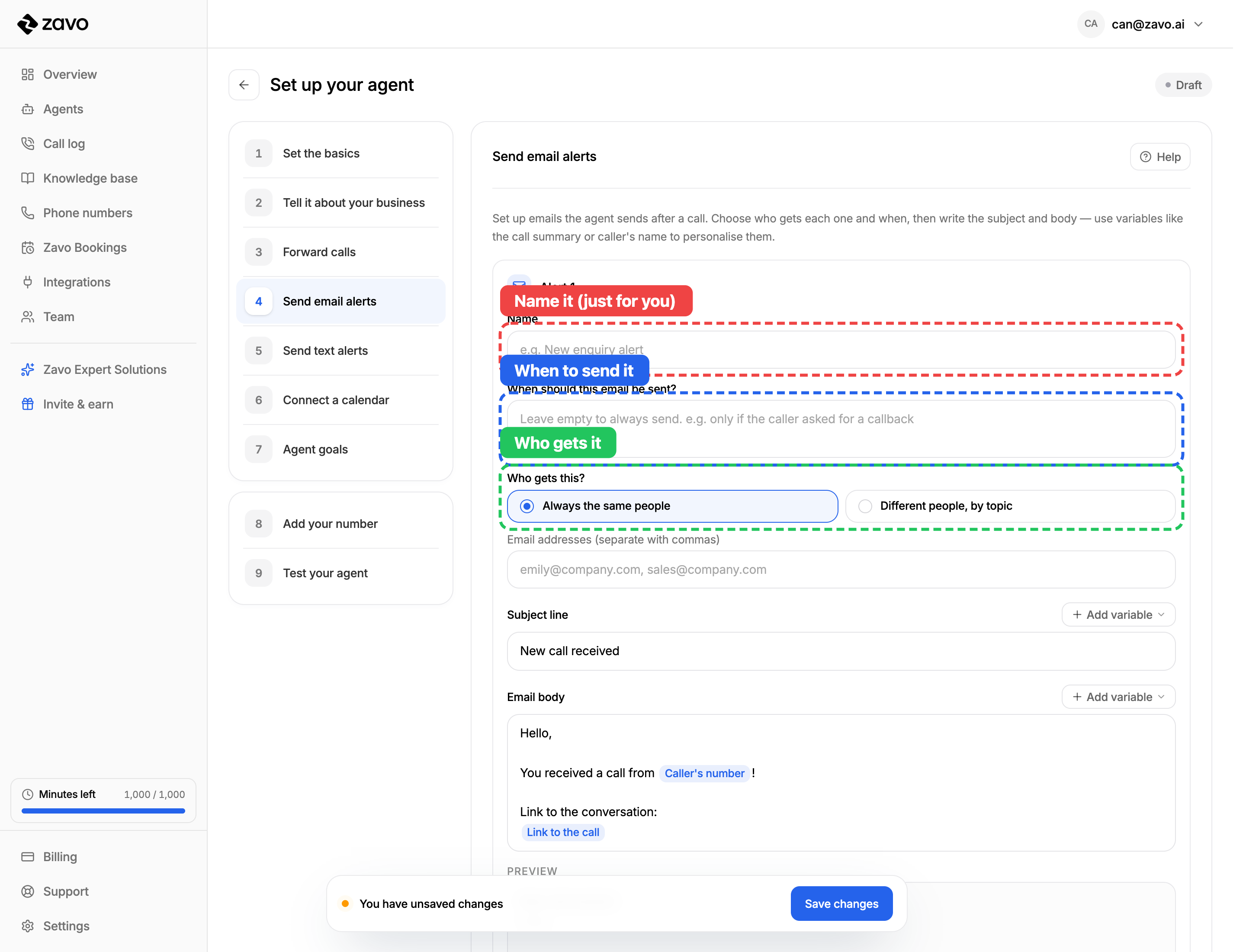
Have your agent email your team after a call — a new enquiry, a complaint, a booking, whatever you want to know about. Open the Send email alerts step and fill in the alert.
- Name — just a label for you, so you can tell your alerts apart (callers never see it).
- When should this email be sent? — leave it empty to send after every call, or describe the trigger in plain words, like "only if the caller asked for a callback."
- Who gets this? — choose Always the same people and type the email addresses (separate several with commas).
Send to different people, by topic
Switch Who gets this? to Different people, by topic and your agent will route each call to the right inbox. For every rule, describe the topic and choose who to email — the AI reads the call and sends it to the matching rule(s).
- If the call is about… — the topic, like "a technical complaint."
- …email these people — the addresses for that topic.
- Add rule — add as many topic rules as you need.
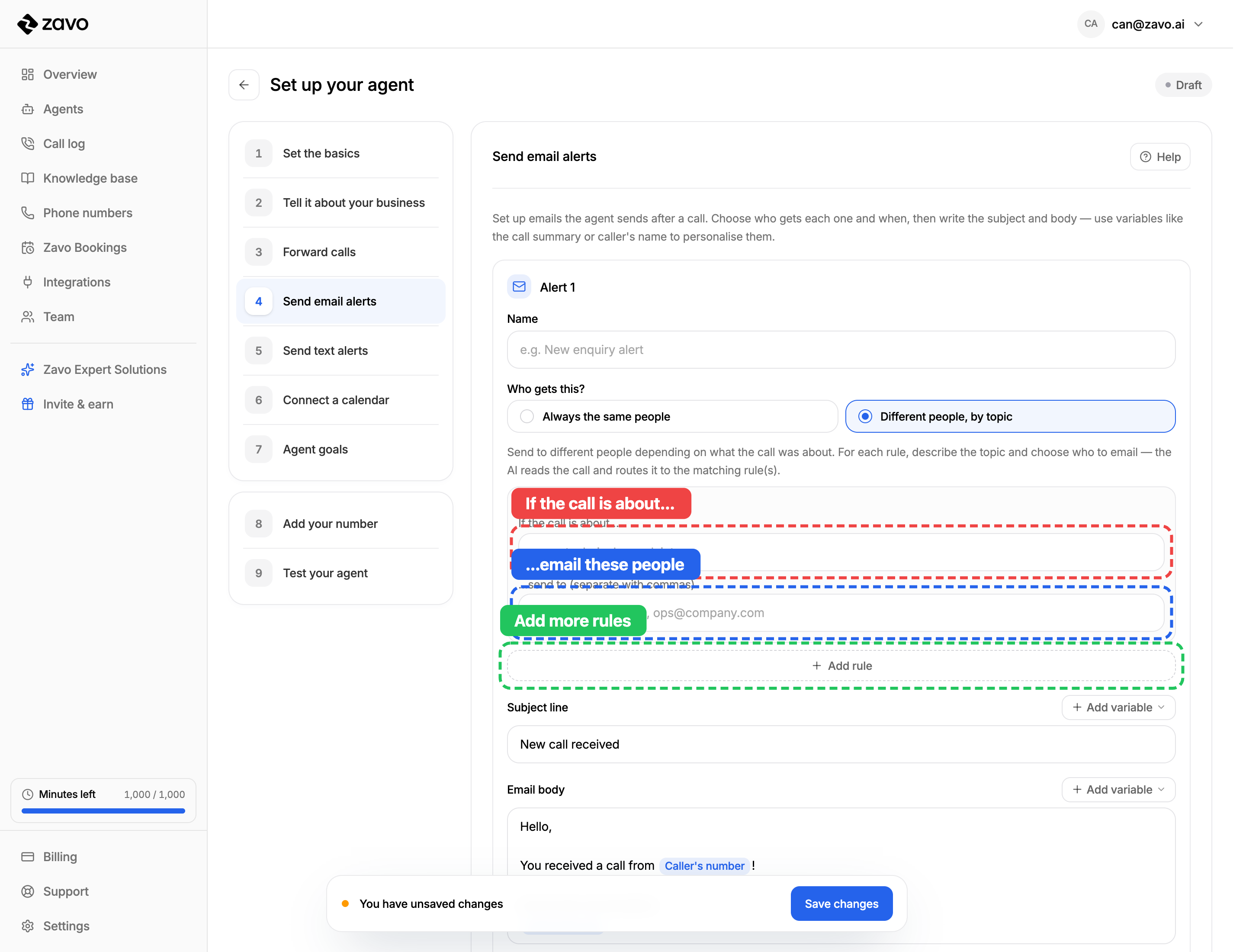
In by topic mode, each rule carries its own trigger, so the separate "when to send" box goes away — the topic is the trigger.
Write the email
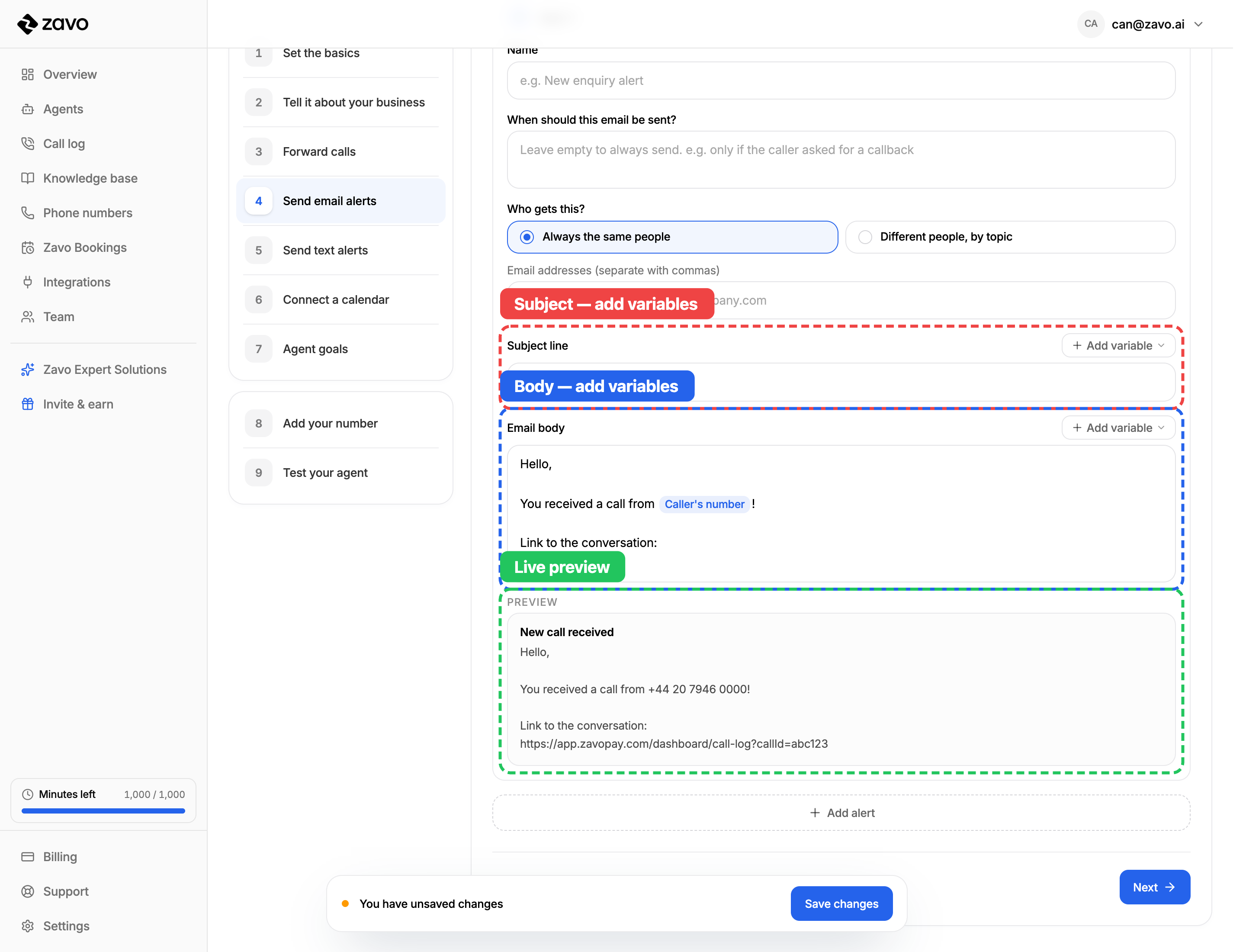
Write the Subject line and Email body. Use Add variable to drop in details from the call, and the Preview underneath shows exactly how it'll look with a real call's details filled in.
Variables you can drop in
Variables are placeholders that get filled in for each call, so one template covers every email. Click Add variable to insert any of these:
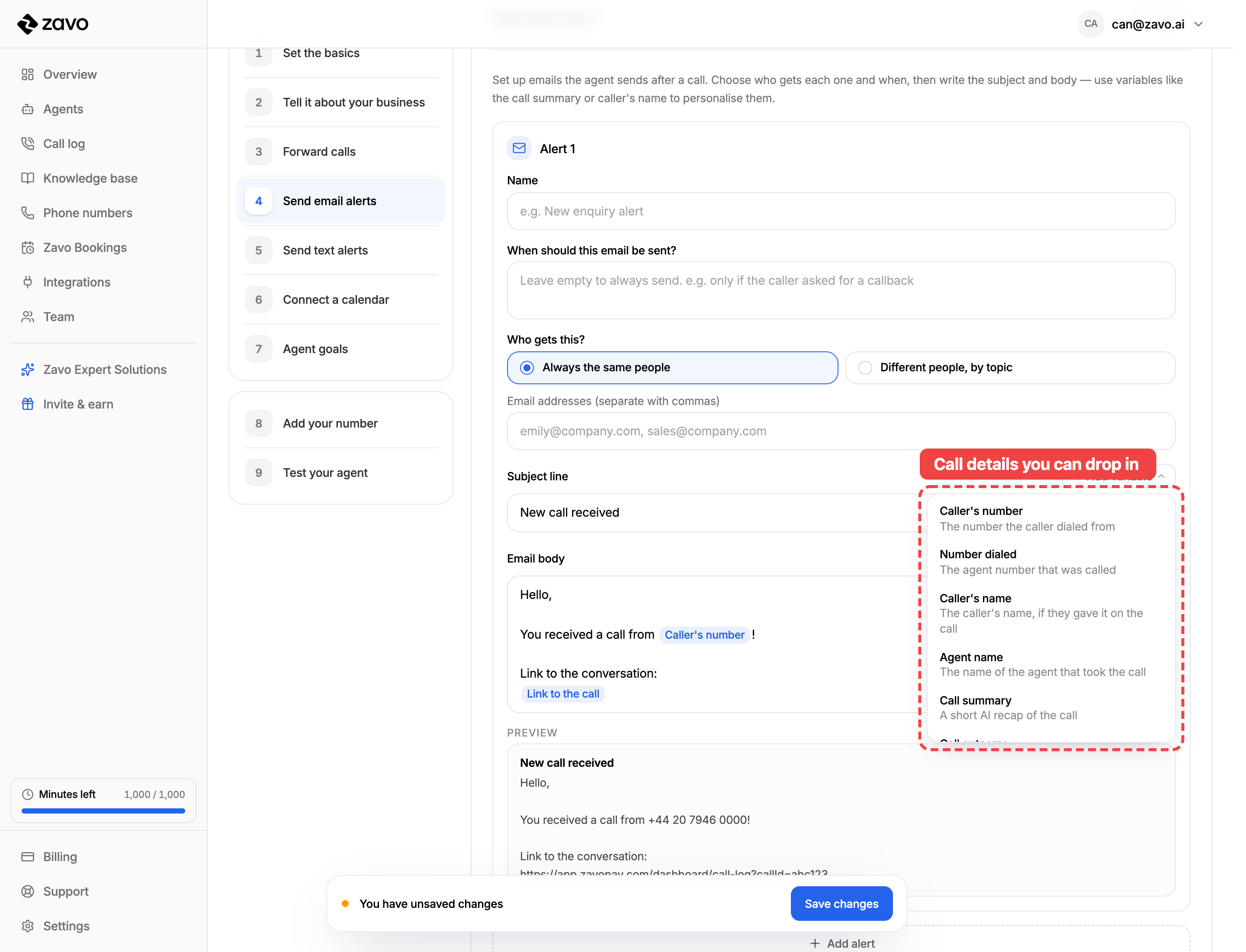
- Caller's number — the number the caller dialled from
- Number dialled — the agent number that was called
- Caller's name — if they gave it on the call
- Agent name — the agent that took the call
- Call summary — a short AI recap of the call
- Call outcome — what the call achieved (booked, answered…)
- Caller sentiment — the caller's overall mood
- Call duration — how long the call lasted
- Call start time — when the call started
- Link to the call — opens the call in your dashboard
Want more than one alert?
Click Add alert to set up several — for example, one for bookings and a different one for complaints, each with its own recipients and wording.
Send text alerts
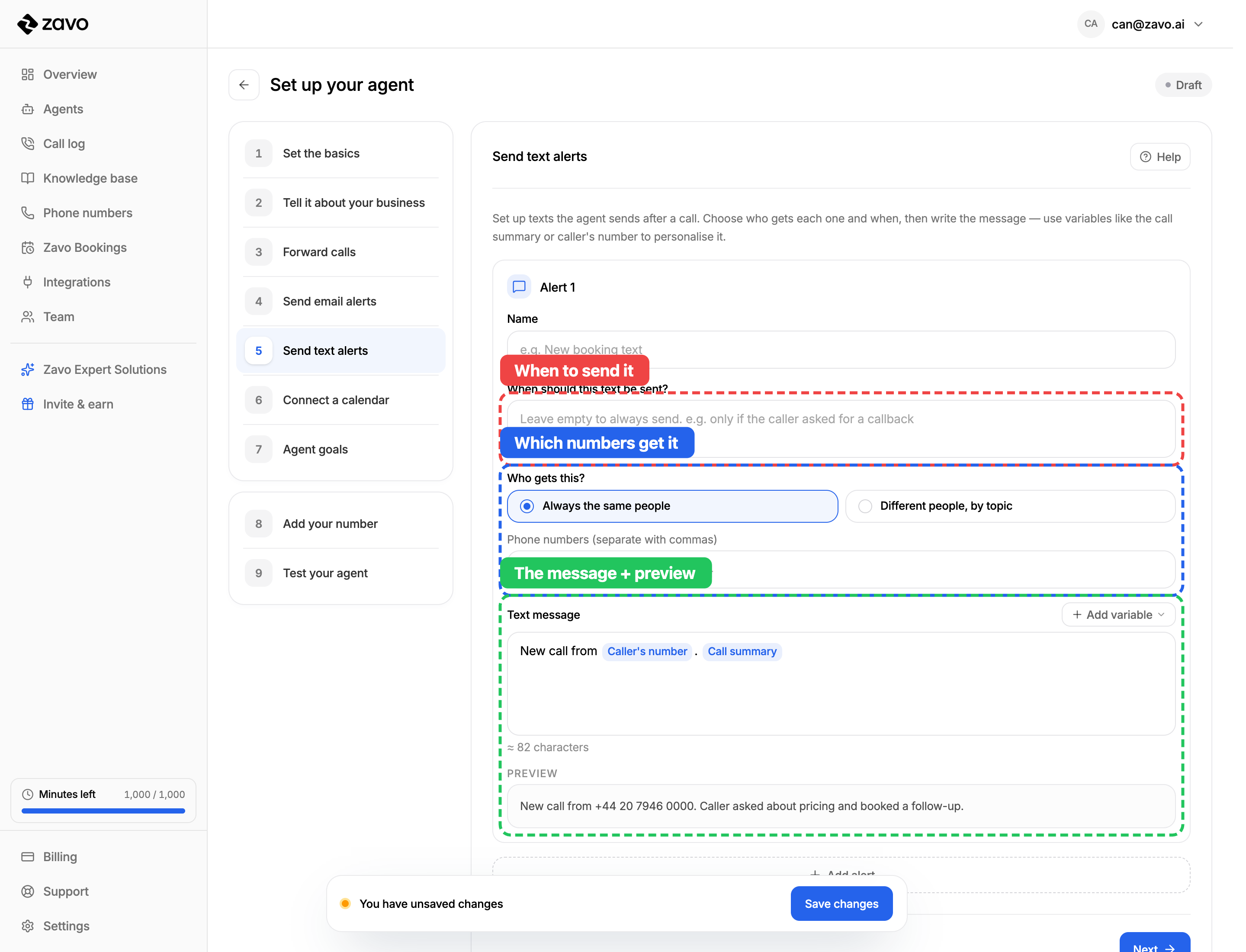
The same idea, by text message — handy for things your team needs to see right away. It works just like email alerts, with no subject line.
- Name it for your own reference.
- When should this text be sent? — always, or only when something specific happens.
- Who gets this? — the same Always the same people / Different people, by topic choice, with phone numbers instead of email addresses.
- Text message — write it once and use Add variable for call details. A character count and a Preview show what will actually send.
Connect a calendar
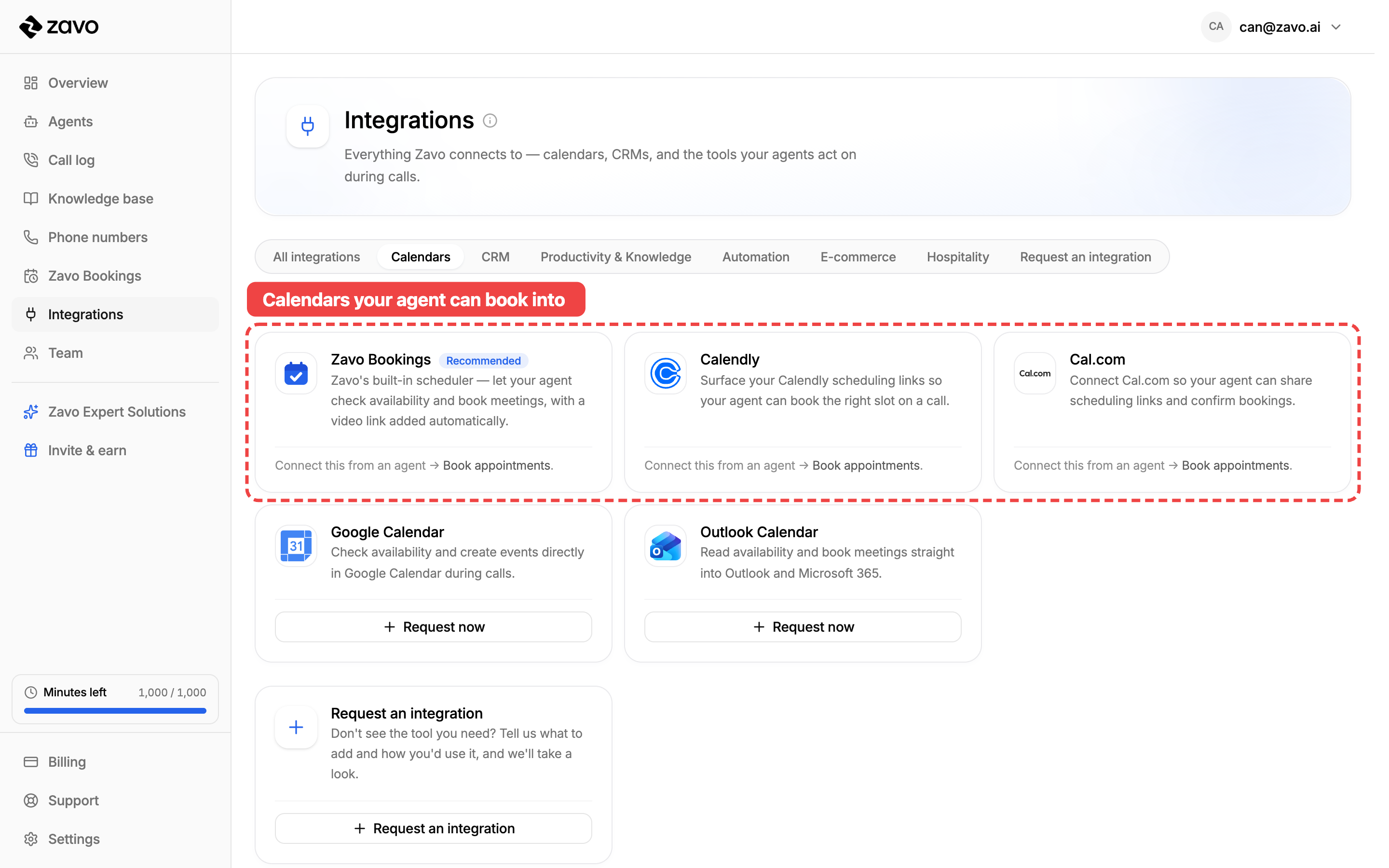
Let your agent book appointments straight into your calendar — it checks your availability on the call and confirms the booking. You can connect Zavo Bookings (built in), Calendly, or Cal.com.
You set this up in your agent's Connect a calendar step. Save your agent first, then pick the calendar to connect — a connection belongs to one agent, so the agent needs to exist before you can link it.
Save your agent first
A calendar connection is tied to a specific agent, so save your agent (top right) before connecting one in the Connect a calendar step.
Tips for actions that work
- Start with one. Pick the single alert that saves you the most time today — usually an email or text on a new booking — and add more later.
- Describe triggers the way you'd say them. "If someone asks about a refund" works better than trying to guess exact words.
- Lean on variables. Dropping in the caller's number and a call summary means every alert arrives ready to act on, without any editing.